Two sections answer two different questions. Reports are about people: who did how much and what they are owed for it. Statistics are about the shop as a whole: how much came in, how much went out and where the repairs are standing right now.
Reports per technician and manager
Pick a period and you get, for every employee: how many repairs were completed, for what amount, how much of that customers have paid, and what the employee is owed at their rate.
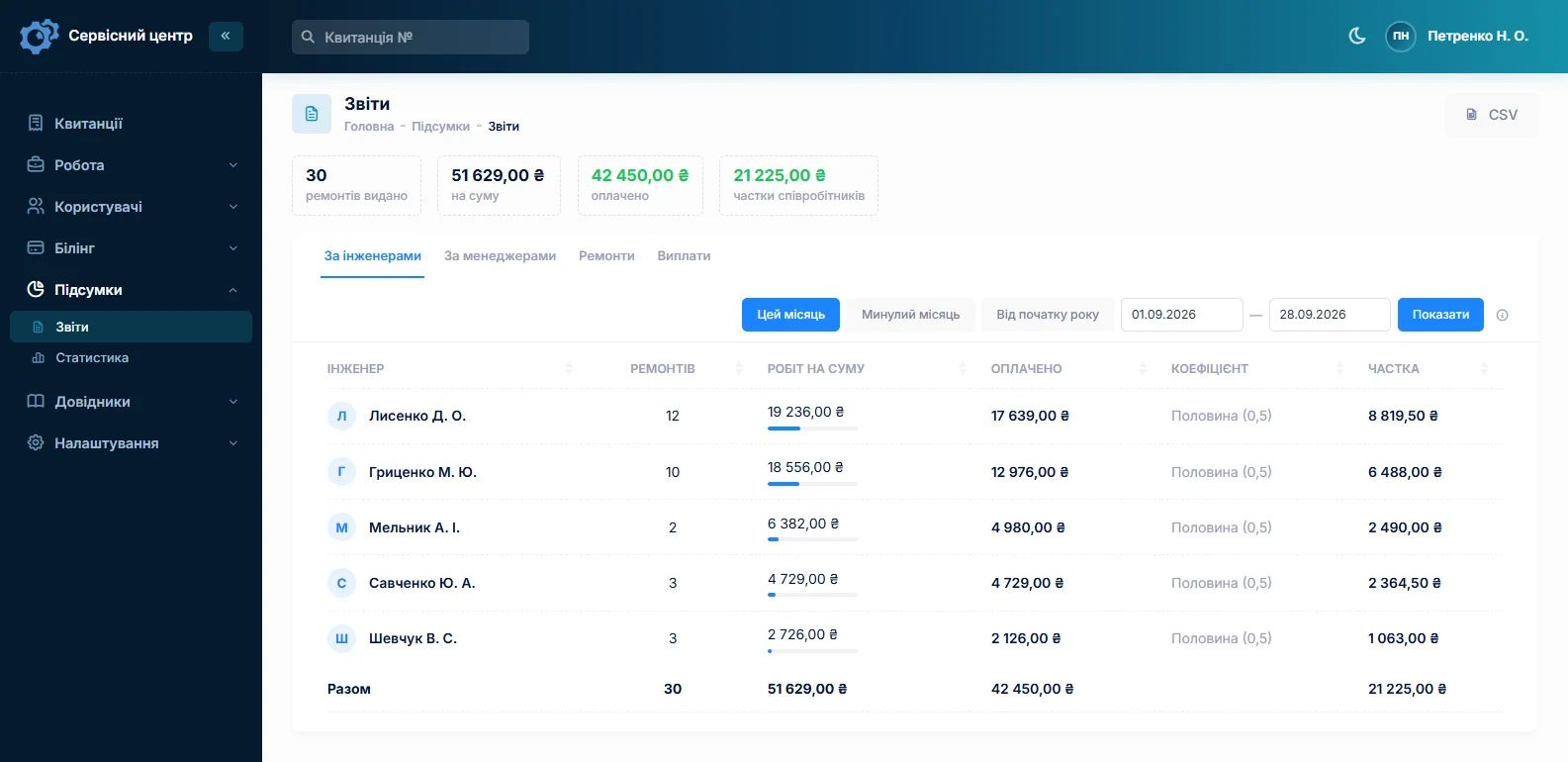
Technician and manager are counted separately: two people usually work on one job, and their output is not the same.
Pay rates
A rate is the share of the repair price that an employee receives. It is defined in the Pay rates reference data and assigned to a person on their card. You can have several rates: a newcomer and an experienced technician are counted differently.
Branch statistics
For the same period: how much was taken in, how much was handed over, how much is still in progress and for what amounts. You also see which statuses the repairs are sitting on — the answer to "where is it stuck".
If you have a single shop, the section simply shows its totals.
What to do with it
The monthly report is the basis for output-based pay, and the statistics for the same month are a reason to check whether something is piling up on one status. Most often what piles up is waiting for parts — then it is worth looking at the orders.
Haven’t found the answer?
Check the questions and answers or write to us — we will reply and fill the gap in the documentation.