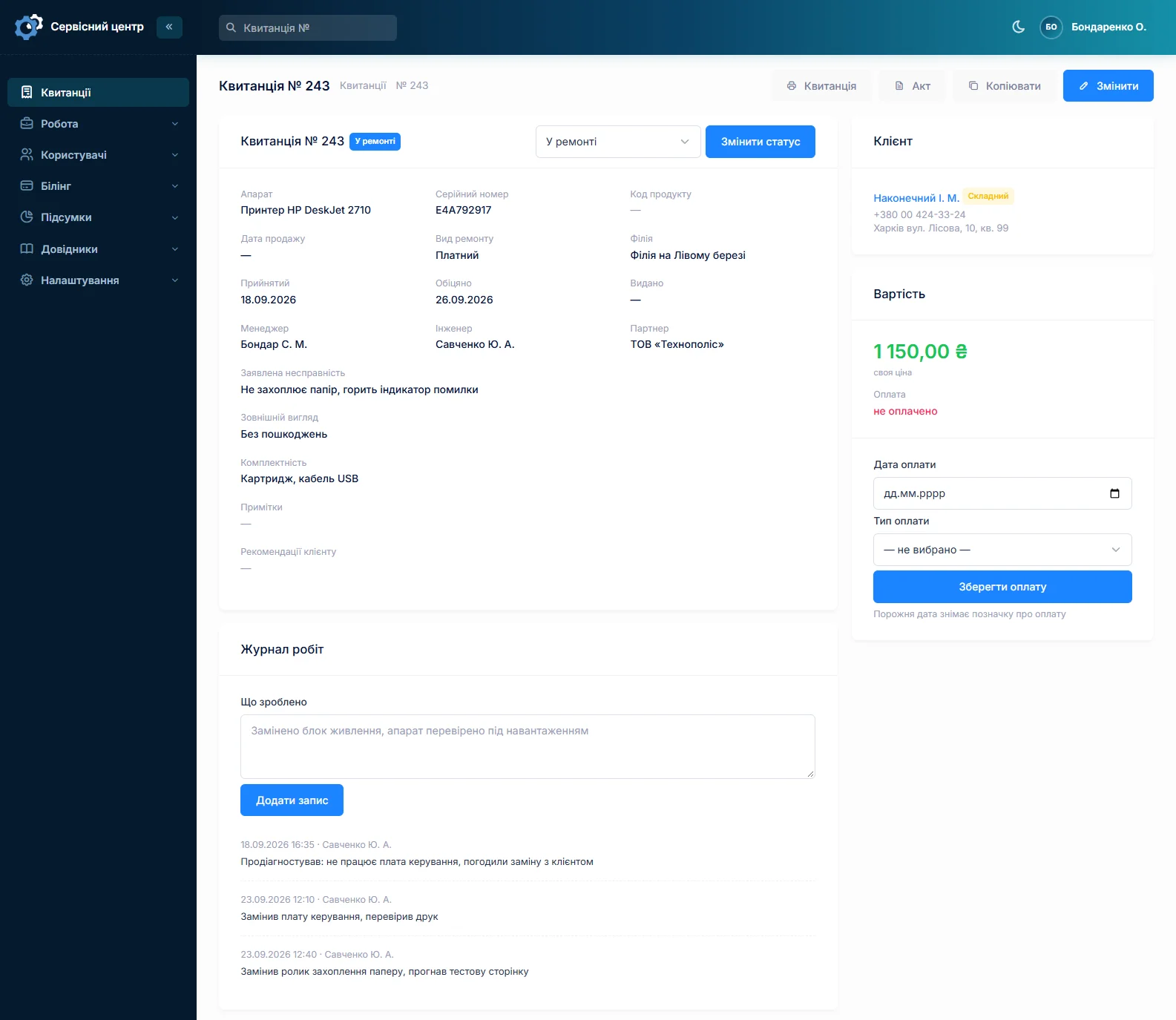
Everything that happens to a device after intake happens in one place — the job card. Open it from the list by clicking the job number.
Status
The status is the short answer to "where is this repair right now". The set of statuses is yours: out of the box it is received, diagnosis, under repair, waiting for a part, ready, handed over. Rename them, add your own and colour them in the status reference data.
A status can be marked as "closes the job". As soon as you set such a status, the hand-over date is filled in for you: it gets set on that day anyway.
Work log
What the technician actually did: screen replaced, cleaned, resoldered. Each entry is its own line with a date and an author. The log is printed on the work certificate, so write it so that the customer can read it, not only you.
Comments
Internal notes for the shop: "customer asked us not to touch the sticker", "called, no answer". Comments are never printed and never shown to the customer.
Price and payment
The final amount can be changed once you know what was broken. Payment is recorded separately, with a payment method from the reference data (cash, card, invoice) — which is why the "unpaid" quick filter is always honest.
Emailing the customer
A button on the card emails the customer that their device is ready. The email goes out in your document language, not in the language of your own interface: a shop can keep its records in Russian and write to its customers in German.
You can send it again — the customer may have missed it — but not more than once a day, so that it never turns into a mailing.
Ordering a part
If the repair needs a spare part, the order is created straight from the card and stays tied to this job. More in Parts and orders.
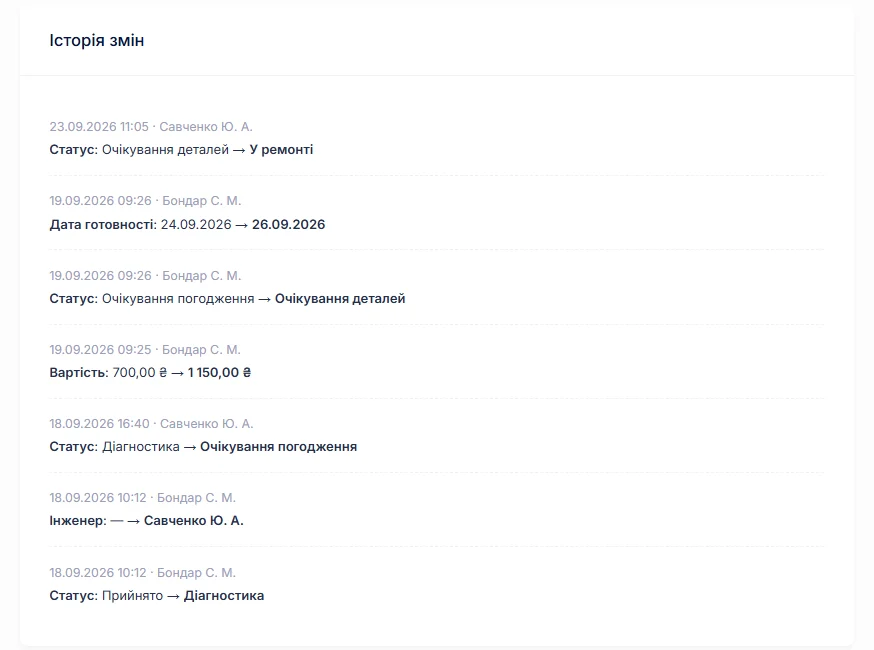
Change history
At the bottom of the card you can see who changed the status, price, technician, dates and payment, and when. What is recorded is readable text, not a code: "Ready", not "6". An argument over who set that price is settled in half a minute.
Handing the device over
Before handing it over, print the work certificate, record the payment and set a closing status.
Haven’t found the answer?
Check the questions and answers or write to us — we will reply and fill the gap in the documentation.