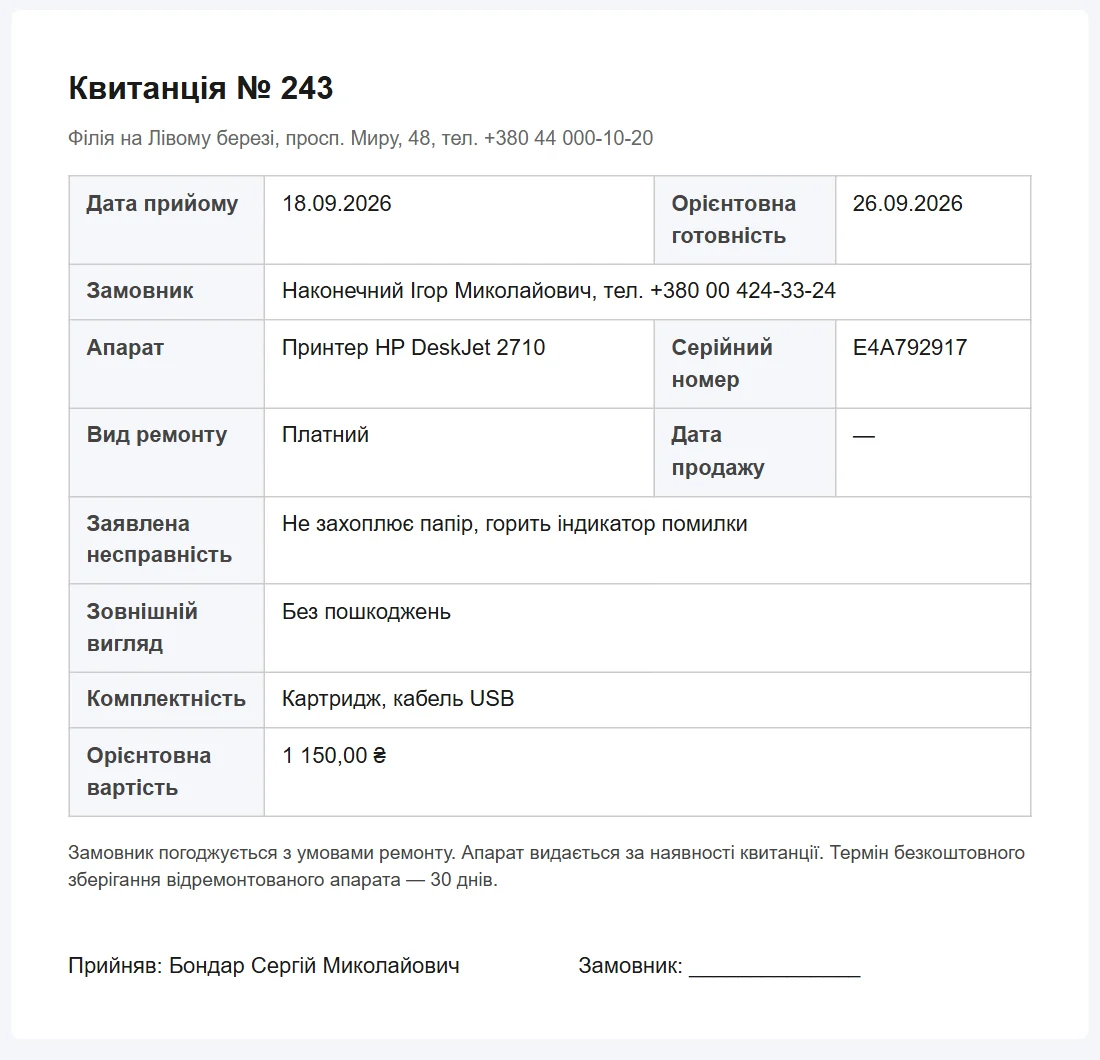
The software prints two documents: the intake form, signed by the customer when they leave the device, and the work certificate, signed when they collect it. Both print from the job card.
What it looks like
A separate page opens with no menu and no buttons — just the document. The sizes are set in millimetres, so the sheet lands on A4 the same way on Windows and on macOS. On a phone the same document simply reads on screen: show it to the customer without printing.
Document language
The document language is a separate setting; it has nothing to do with the language of your own interface. A shop can keep its records in Russian and print for its customers in German. Both templates are installed in all four languages (Ukrainian, Russian, English, German), so the document language can be changed any day — the template you need is already there.
Editing the template
The Print forms section holds your letterhead, not ours. The terms for storing a device, warranty periods, the order of fields — all of it is edited inside the software, without asking us. At the top are the “Intake form” and “Work certificate” tabs and the language choice; on the left is the template text, on the right the sheet exactly as it will print, filled from your latest job and updated as you type. If something goes wrong, Restore original brings back the template the software was installed with.
The template text takes placeholders: {number} for the job number, {customer_name} for the customer, {repair_log} for the work log and so on. All placeholders are listed under the field: click one and it goes in at the cursor. If one of them is left empty, it simply disappears from the printed document — the customer never sees "{foo}".
Logo, company details and branch data
At the top of the template sits the {letterhead} placeholder — the header: the logo on the left; on the right the shop name, branch, address, phone and company details. The logo and details are set in the settings, and a branch can have its own — then its intake forms and certificates carry those. Anything empty stays out of the header: with no logo and no details you get a single address line.
Address, phone and opening hours come from the branch the job belongs to. So across a chain of shops every printout carries its own contacts and details while the template stays single.
Haven’t found the answer?
Check the questions and answers or write to us — we will reply and fill the gap in the documentation.