Tracking repairs in Excel: when the spreadsheet stops working
An honest comparison of a spreadsheet and repair-tracking software: what Excel does well, where it breaks, and how to keep the spreadsheet in good shape if you stay with it.

Most workshops start tracking repairs in a spreadsheet — and they are right to. Excel or Google Sheets are free, familiar and flexible. This page is about where a spreadsheet copes, where it starts letting you down, and how to keep it so that it lasts longer. And, if you decide to move to software, what exactly changes.
What a spreadsheet does well
- It costs nothing and is already on your computer.
- It is flexible: need a new column — add it in a second.
- It is familiar: nobody needs training.
- Google Sheets open on a phone and let two people work at once.
For a workshop with one technician and a few repairs a week, that is plenty. There is no point switching to software just because “that is what the big shops do”.
Where the spreadsheet breaks
The problems do not appear at once but as you grow — more repairs, a second person, the first dispute with a customer. The usual weak points:
- No job sheet. You cannot hand a spreadsheet row to a customer. The form has to be filled in separately — and the data is already in two places.
- No record of who changed what. The price in a row was 900 and is now 1,400 — who changed it and when? The spreadsheet will not say, and that is exactly the question that comes up in a dispute with a customer or a technician.
- Everyone sees everything. The front desk sees the month’s takings, the technician sees every customer’s phone number, and anyone can accidentally delete a row or sort just one column.
- Customers get duplicated. The same customer appears in ten rows written three ways: “Ivanenko”, “Ivanenko O.”, “Oleh (Samsung)”. Finding all of their repairs by phone number becomes a job of its own.
- Overdue jobs are invisible. To see that a date has passed you colour cells by hand or set up conditional formatting that breaks after the first sort.
- Reports are fragile. A formula for “what each technician earned” works until someone inserts a row in the middle or types an amount with a space in it.
- Working at the same time. Two people cannot work in one Excel file; in Google Sheets they can, but simultaneous edits to the same row quietly overwrite each other.
Signs it is time to switch
None of the problems above forces a switch on its own. But if two or three of these apply, the spreadsheet is already costing you more than it seems:
- more than thirty repairs a month;
- more than one person works in the spreadsheet;
- you have argued with a customer at least once about a device’s condition or the promised price;
- a row has gone missing or someone’s edit has been overwritten at least once;
- you work out technicians’ pay by hand, checking the spreadsheet against the till.
If you stay with Excel: how to keep the spreadsheet properly
If a spreadsheet is enough for you, this is what will protect it from most problems.
One repair, one row. Do not merge cells or put several devices in one row. The columns you cannot do without:
- job number (running, never repeated);
- date booked in;
- customer — surname and first name;
- phone — always in the same format, e.g. 0671234567;
- device and model;
- serial number or IMEI;
- fault in the customer’s words;
- condition and accessories;
- promised date;
- status;
- price;
- date paid;
- date collected;
- technician.
Status from a list only. Add data validation with a drop-down: “booked in”, “in progress”, “waiting for part”, “ready”, “collected”. Then filtering by status works instead of breaking on “ready”, “Ready” and “ready ”.
Delete nothing. A refused repair is a status too, not a deleted row. Otherwise the numbers get gaps and there is no way to reconstruct what happened.
Freeze the header row and always sort the whole table, never a single column.
Make a copy every week into a separate folder, with the date in the file name. Google Sheets keeps a version history, but it will not help if the file is deleted or you lose access to the account.
What changes with software
If you do decide to switch, here is how the same problems look in ServiceCenterSoft:
- the job sheet prints from the same data as the records — nothing is written twice;
- every job sheet keeps a change history: who changed what and when — status, price, technician, dates;
- permissions are set per section: the front desk does not see money, technicians do not see the customer database;
- each customer exists once, with all their repairs on one card; search by any digits of the phone number;
- overdue jobs turn red by themselves, no conditional formatting needed;
- the technician report is calculated from the job sheets themselves, so no formulas to break;
- two or ten people can work at the same time, from a computer or a phone.
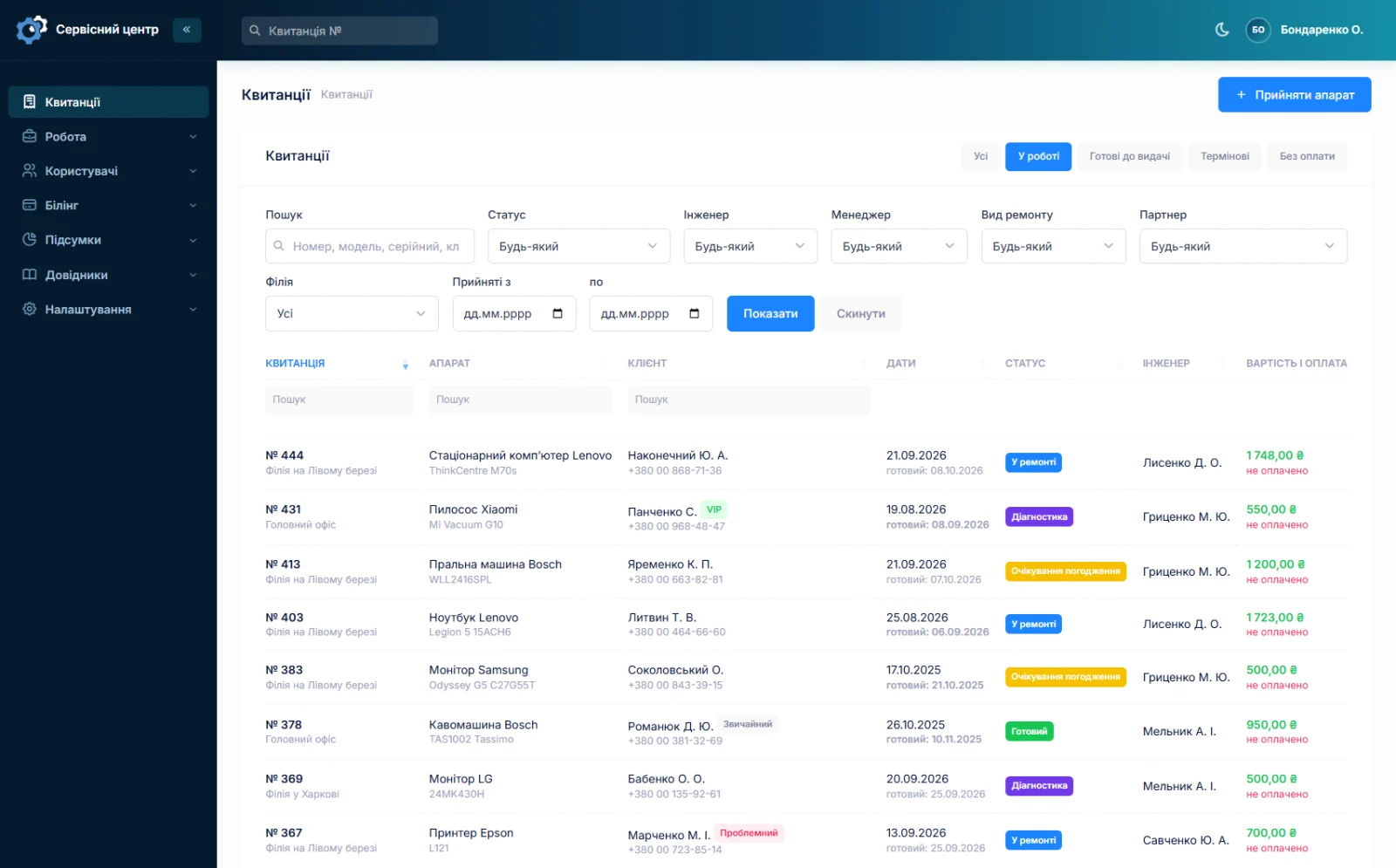
What the software lacks and a spreadsheet has: free-form columns and export back to Excel. Job sheet fields are fixed; if you are missing a field of your own, that is custom work.
How to move from a spreadsheet
There are two ways. The first is simply to start: hand back old repairs from the spreadsheet and book new ones into the software. Within a few weeks the spreadsheet becomes an archive by itself. The second is to migrate: if the spreadsheet is large and tidy, we will load the customers and repairs into the software. Tell us how many rows it has and which columns.
Prices are on the pricing page, and you can look at the software without signing up in the demo.
Frequently asked questions
Google Sheets is free. Why pay for software?
If the spreadsheet copes, there is no need to pay — and we say so. The software pays for itself once the spreadsheet is already costing you time: printing job sheets separately, hunting for a customer across ten rows, disputes with no change history, technicians’ pay checked by hand. Count the hours a month that goes on — the answer is usually obvious.
Which columns do you need to migrate my spreadsheet?
At a minimum: date booked in, customer, phone, device and status; ideally also serial number, fault, price and date collected. The tidier the spreadsheet (one repair per row, phone numbers in one format), the less manual work. Send us the column names and the number of rows and we will tell you what can be moved.
Can I take the data back out into a spreadsheet later?
There is no “export to Excel” button in the software, and we do not pretend there is. If you need such an export, it is custom work at the hourly rate. The data is yours all the same: every workshop has its own separate database.
Can I add my own columns to the job sheet, as in a spreadsheet?
The job sheet fields are fixed: device, model, serial number, fault, condition, accessories, dates, price, technician and manager. For everything else there is a “notes” field. If you regularly need a separate field — say, a phone passcode or a shop’s return reference — that is custom work.
Can I run the spreadsheet and the software side by side for a while?
Yes, that is common during the switch: old repairs are seen through to collection in the spreadsheet, new ones are booked into the software. There is no synchronisation between them, so it is best not to track the same repair in both places at once — otherwise you are back to two versions of the truth.
What should I do with the old spreadsheet after switching?
Keep it as an archive. You can search it for old repairs just as before, and all new ones will be in the software. If you want the old history on customer cards too, we can move it — get in touch.
See also
Paper log book and receipt pad: when to move to software
An honest look at keeping repairs on paper: what the log book and receipt pad do well, where they let you down, how to keep them properly and how to move to software without losing anything.
Read moreAn alternative to Gincore and RO App: an honest comparison
How ServiceCenterSoft differs from Gincore and RO App: prices from their websites, where they are stronger, where we are, and who each one suits.
Read more